
Guides
Business System Integration
Connect account systems, backend services, APIs, and webhooks.
Integrate with an existing business system
Instant messaging (IM) has become an essential foundational capability for many applications. If you already have an existing business system and want to add chat capabilities using OpenIMSDK, follow this guide to connect your business accounts, business backend, OpenIMServer, and OpenIMClientSDK.
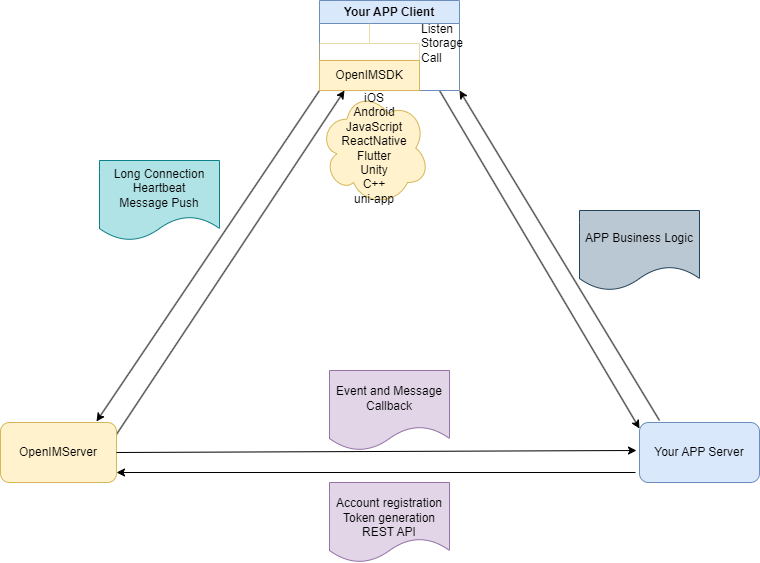
In the diagram above:
- Your APP Server represents your existing business backend in any development language. It continues to maintain business data such as user credentials and password authentication.
- Your APP Client represents your existing business client application, built with any mainstream frontend framework.
Connect business backend to OpenIMServer via REST API
- Register new users: When a user registers in your business system, call the Create user endpoint to create the corresponding user in OpenIMServer.
- Update user profiles: When a user updates their avatar, nickname, or custom extension fields, call the Update user endpoint to sync the updated profile.
- Retrieve login tokens: After the business backend authenticates user credentials, call the Get user token endpoint and return the IM token to the client.
- Import existing users: Before going live, import existing user accounts into OpenIMServer by calling the create user endpoint.
Integrate OpenIMClientSDK into business client
- Log in: After obtaining the IM token from your business backend, call the OpenIMClientSDK login method.
- Enable instant messaging features: Integrate OpenIMClientSDK into your application and activate conversations, messages, groups, and friendship capabilities as needed.
- Maintain profile source of truth: Keep your business backend as the single source of truth for user profiles. When profiles change, synchronize them from your business backend to OpenIMServer.